
Identity
Brand Style guide
It’s who we are.
Our logo represents us at the highest level and is critical to who we are as a brand. Follow these guidelines to ensure its consistent use across media in order to build a strong, cohesive brand.

Please Note
Please Note
Logos should be reproduced only from authorized digital files. Do not attempt to typeset or recreate them yourself. Approved marks can be obtained by logging in with your campus credentials at pfw.edu/libris. Approved, licensed vendors have access to official marks in the BrandManager360 portal through CLC. Refer to the Athletic Brand Guidelines for all athletics marks and usage guidelines.
Anatomy
Our logos have been built to speak from a single visual voice, for clear and consistent communication. All of these marks must be used as shown here, in accordance with the guidelines in this section.
Primary
For most applications, the primary logo should be used as the main identifier.
Vertical
For extreme vertical compositions with limited horizontal space.
Horizontal
For extreme horizontal compositions with limited vertical space.
Color
The colors of the logo are determined by the background it appears on, as shown here. Plan your layouts to accommodate the preferred option. One-color versions of our identity should be used sparingly (only when printing restrictions demand it).
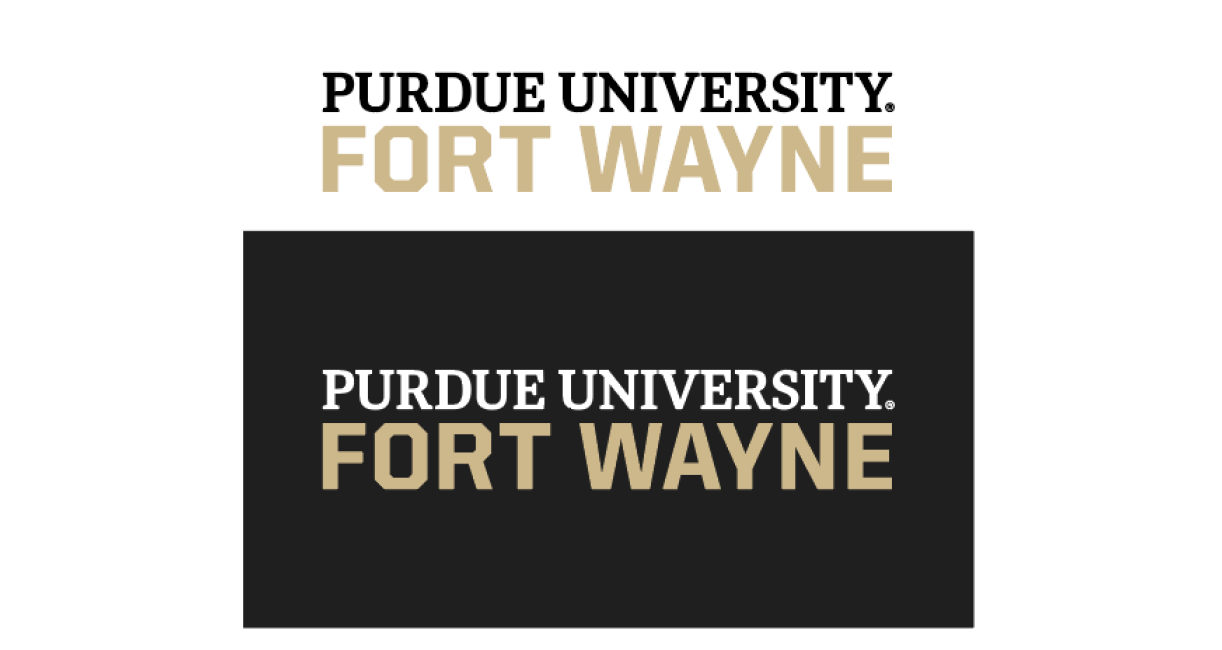
Two-color Golden
Performs strongest on dark backgrounds.
Two-color Fog
Performs at all scales on both light or dark backgrounds.
One-color
Performs at all scales on both light or dark backgrounds.
Sample Architecture
Logo lockups—also known as cobrands—are logos for our colleges, schools, top-level administrative units (under the supervision of a vice chancellor), or entities one level down from a college, school, or top-level administrative unit.
An official university lockup may be enhanced with a graphic identity only under specific circumstances:
- It is for short-term usage.
- It may not be used for recruitment.
- The area it symbolizes is open to students, faculty, staff, and the community.

Clear Space
The logo should never feel like it’s crowded or competing for attention. That’s why we always surround it with ample clear space. This space, measured using the height of the letter W, extends around the entire perimeter of the logo.

Considerations
Avoid these pitfalls when using the logo.
- Don't skew, stretch, or bend the logo in any way.
- Don't rotate the logo.
- Don't use drop shadows or other visual effects.
- Don't use any colors other than those specified in this document.
- Don't apply any additional brand treatments to the logo.
- Don't crop the logo.
- Don't outline the logo.
- Don't apply the logo to a background that doesn't provide adequate contrast.
Email Signatures
Purdue Fort Wayne Marketing Services recommends that faculty and staff use a branded signature block with the university's logo as their email signature. Follow the instructions below to download the signature logo and create your branded signature block in Microsoft Outlook.
To download the university's email signature logo, visit the Libris Digital Asset System and log in using your campus credentials. Once you are logged in, navigate to Invited Galleries >> Campus Assets >> Branding 2020 >> Logos >> Primary Logo >> Email Signature. Click the download button in the lower right corner of the window.
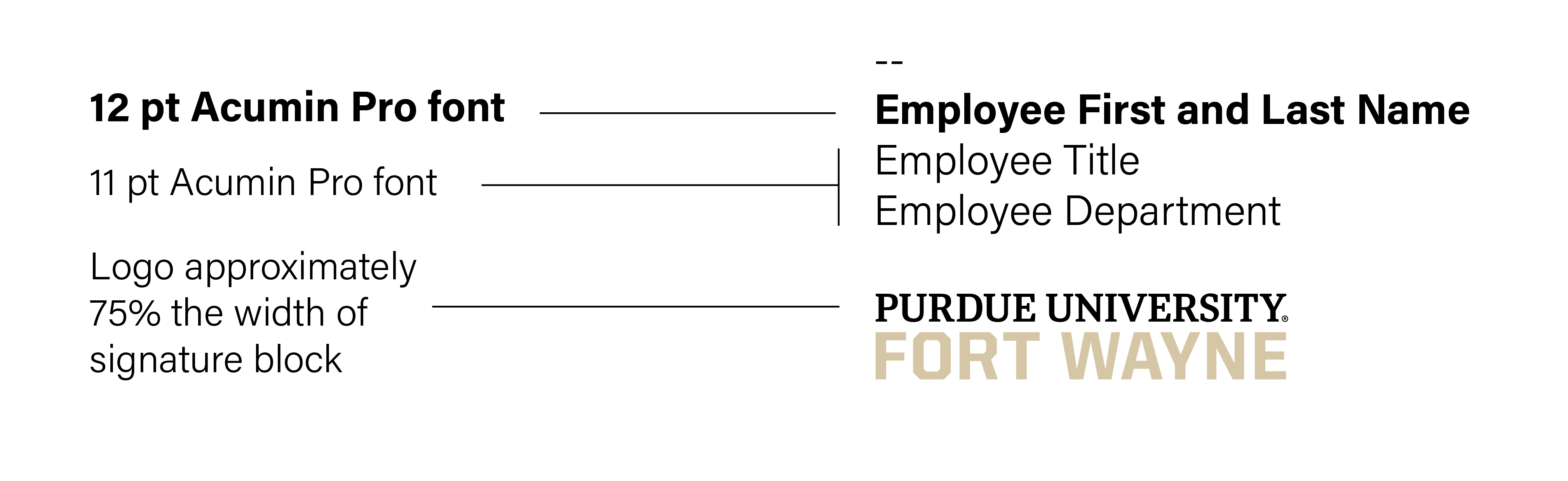
Open Microsoft Outlook. Navigate to the Outlook/File tab and select Settings. Select Signatures. Press the "+" button to begin creating your email signature. Your signature should follow the structure below:
- Employee First and Last Name (Bold 12-point Acumin Pro font)
- Employee Title (11-point Acumin Pro font)
- Employee Department (11-point Acumin Pro font)
- Purdue University Fort Wayne email signature logo (Approximately 75% the width of the signature block)
Refer to the example below when finalizing your email signature.
Have questions?
For additional information on brand assets, standards, and procedures, contact the Marketing Services team at [email protected]