How-to Guides
Module Guides
Video Guides
Making Our Website Accessible to All
This quick guide helps Drupal publishers ensure that the content and online documents they publish are accessible in accordance with the new ADA Title II Ruling by April 24, 2026. Purdue outlines its commitment to these standards in Purdue’s S-5 Standard for Electronic Information, Communication, and Technology Accessibility. Accessibility will be determined based on the AA-level standard of the Web Content Accessibility Guidelines (WCAG) 2.1.
What is accessibility?
Content is accessible when it can be viewed on the web, shared in a link, or downloaded. Making content accessible is not as straightforward as it seems, because users have different levels of navigation skills and needs, such as disabilities. All of these potential cases must be considered and accommodated. Therefore, accessibility is an ongoing effort to make digital content easier for all users to access.
In Summary
These are the main directives you, as a Drupal publisher, should keep in mind to ensure your content is accessible. This list serves as a table of contents for the rest of the page. Click each directive to jump to the section and see more details. Also, refer to the Frequently Asked Questions at the bottom of the page.
1. Check your Word, PDF, Excel, and PPT documents.
All documents uploaded to the university site must be accessible. The Center for Enhancement of Learning and Teaching has compiled some excellent resources for instructors.
Microsoft Word Documents
Use clear headings, readable fonts, and alternative text for images.
CELT's Checklist for Word documents Microsoft's Built-in Checking tool
PDF Documents
Use clear headings, readable fonts, and alternative text for images.
CELT's Checklist for PDF documents Adobe's Built-in Checking tool
Powerpoints
Use high color contrast, descriptive slide titles, and alternative text. Built-in layouts are usually the best option to make this easy.
CELT's checklist for Powerpoints Microsoft's Checklist for Powerpoints
Excel Spreadsheets
Use clear and meaningful naming conventions and avoid merging cells. Complicated formatting and dynamic workflows within a spreadsheet may not break any rules, but make it difficult for anybody except the creator of the sheet to follow, so refactor your spreadsheets for simplicity.
CELT's checklist for Excel spreadsheets Microsoft's checklist for excel spreadsheets
Document Listing Module
Consider using the module below when you need to upload multiple documents in a single section of your site. It provides the user with more information about the document before they click, such as the upload date and file extension.
Don-Life-December-17-2025.pdf
2.01 MB
●
Uploaded 12/17/25
Inside-PFW-December-18-2025.pdf
621.62 kB
●
Uploaded 12/18/25
PFW Hiring Process
41.89 kB
●
Uploaded 12/12/25
2. Don't use text in images.
According to section 1.4.5 of the Web Content Accessibility Guidelines, to reach the mandatory level AA standard, the following must be observed:
"If the same visual presentation can be made using text alone, an image is not used to present that text."
Users with visual impairments use screen reader software to navigate the page, and screen readers will miss any information rendered as images. Therefore, images should always be supplemental to the information that needs to be conveyed, rather than its only source. We fill the media library with generic campus shots so you can quickly fill an image slot with a nice-looking supplement and focus on conveying your information through text.
We most often see this violated when publishers post to the Events Calendar. Many offices have flyers or branded graphics with slogans that they have already prepared for events, so we understand that it is quickest and easiest to upload these directly into the Image slot when creating an event. But it is not accessible. When filling out an event, you must enter all information in the provided text fields. If any information doesn't fit, put it in the Body field, which has no limit on the amount of content it can hold.
Violating Example: A past event that uses text in its image.
Good Example: A past event that uses a generic image.
Good Example: A past event with no image uploaded, resulting in a fallback image.
3. Structure your content cleanly in the text editor, using appropriate headings.
When working in the WYSIWYG text editor, paste styled text from other editors and clean it up using the Remove Format button.
Order all headings descending numerically. H3 comes before H4, H4 comes before H5, and so on. You can use the same heading level more than once in a row, but never skip a level.
Good headings: Heading 2
Heading 2 is a good choice for the first heading inside a new module.
Heading 3
Heading 3 is also a good choice for the first heading inside a new module.
Heading 4
Heading 4 should be nested below a Heading 3.
Heading 5
Heading 5 should be nested below a Heading 4.
Heading 6
Heading 6 should be nested below a heading 5.
Bad Headings: Heading 1
This heading is formatted in bold rather than using a real heading tag. Screen readers will not recognize headings created this way.
Heading 1
You should only use Heading 1 if the very large font style is suitable for your module.
Heading 3
Do not skip heading levels. The previous heading level was 1, so this heading should be level 2, not level 3.
Heading 2
Do not use a larger heading level beneath a smaller heading level in the same module. The previous heading level was 3, and this heading goes back up to 2 instead of continuing down to 4.
Heading 4
Beware of pasted text content with styles tagging along. A serif font style or lighter gray coloring like this one is a good indicator of stowaway styles. These styles can affect color contrast and readability, and can also disrupt the natural flow of the page's HTML. Clean your pasted text using the Remove Format button!
4. Links and buttons should have specific labels that emphasize keywords.
According to section 2.4.5 of the Web Content Accessibility Guidelines, to reach the mandatory level A, the following must be observed:
"The purpose of each link (or image button or image map hotspot) can be determined from the link text alone, or from the link text and its context (e.g., surrounding text, list item, previous heading, or table headers). Links with the same text that go to different locations are readily distinguishable."
To improve search engine optimization and provide maximum context (especially for screen reader users), linked text should prioritize keywords. By linking keywords and removing filler words, the links will make sense out of context when the user is scanning the page quickly or when a screen reader reads the label for each link sequentially. Often, the best combination for a link is two words: the keyword that describes the content behind the link and a verb that describes how users will access it. See examples below.
Bad Link Text
- Click here to see our schedule for the spring semester
- Read more about our community involvement.
- https://www.pfw.edu/visual-performing-arts/community-arts-academy
5. Consider contrast of the background image with overlay text in banners.
According to section 1.4.3 of the Web Content Accessibility Guidelines, to reach the mandatory level AA, the following must be observed:
"Text and images of text have a contrast ratio of at least 4.5:1. Large text - at least 18 point (typically 24px) or 14 point (typically 18.66px) and bold - has a contrast ratio of at least 3:1."
In almost all cases, Drupal's design constraints ensure that the text you enter on your webpage has sufficient contrast for accessibility. The one module where this becomes a potential concern is the "Banner - CTA" module, because it overlays text on a background image. See examples below. In most cases, the contrast will take care of itself, even in this module, because the Banner - CTA includes a script that reads the color profile of the background image you choose and applies an appropriately dark tint to the image.
However, there may be cases where the dynamic contrast checker doesn't get it right, especially when the image is complex and mostly light-colored. There may also be cases where the contrast is technically achievable, but you would prefer the text to be even more readable. In these cases, you can manually increase the image's tint level. Go into the "Settings" tab of the Banner - CTA, and enter a value between 0 and 1 in the "Tint amount override" field." When you get above 0.6, the tint becomes very dark and should make the text readable in almost all cases.

Kicker Text
Default tint level.
At this level, the text contrasts sufficiently with the background and meets accessibility guidelines. However, since it is a light-colored image with a complex background that includes people, you might find the visual noise is higher than ideal and be motivated to increase the tint level.
Kicker Text
Increased tint level.
In this banner, the tint level is manually increased to 0.65. The background image is less visible, but the text is significantly sharper.
6. Write good alternate text when uploading images.
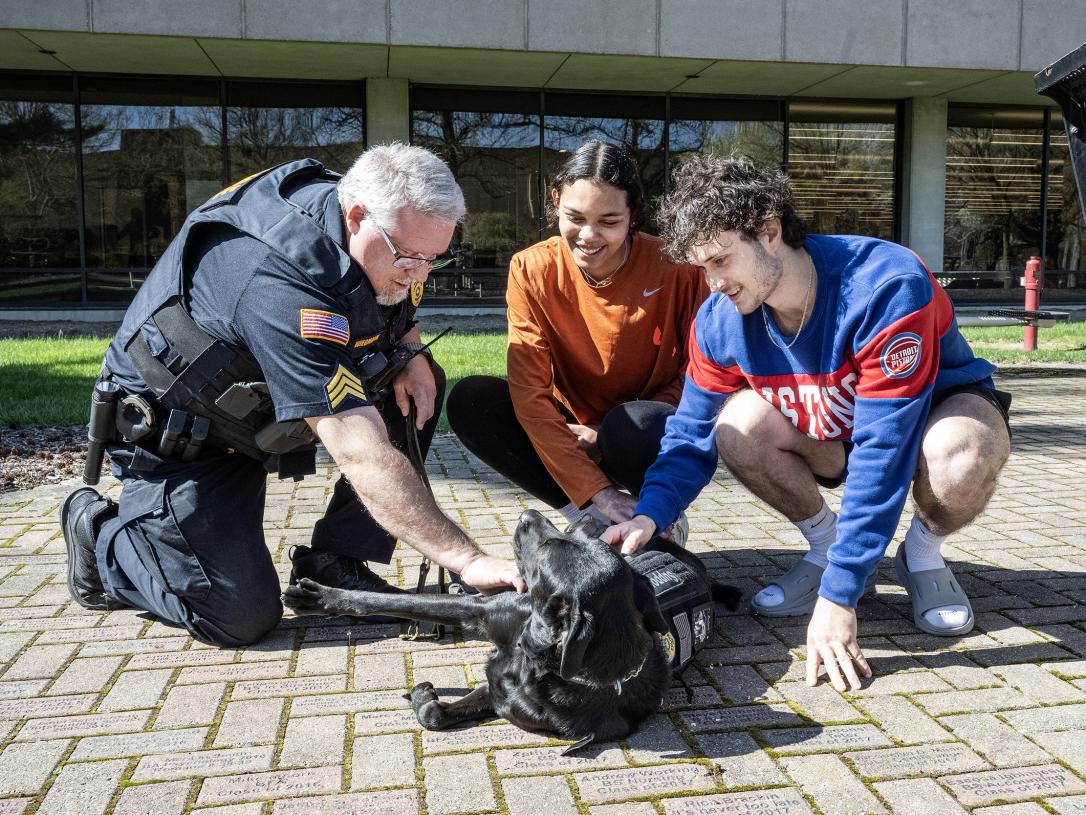
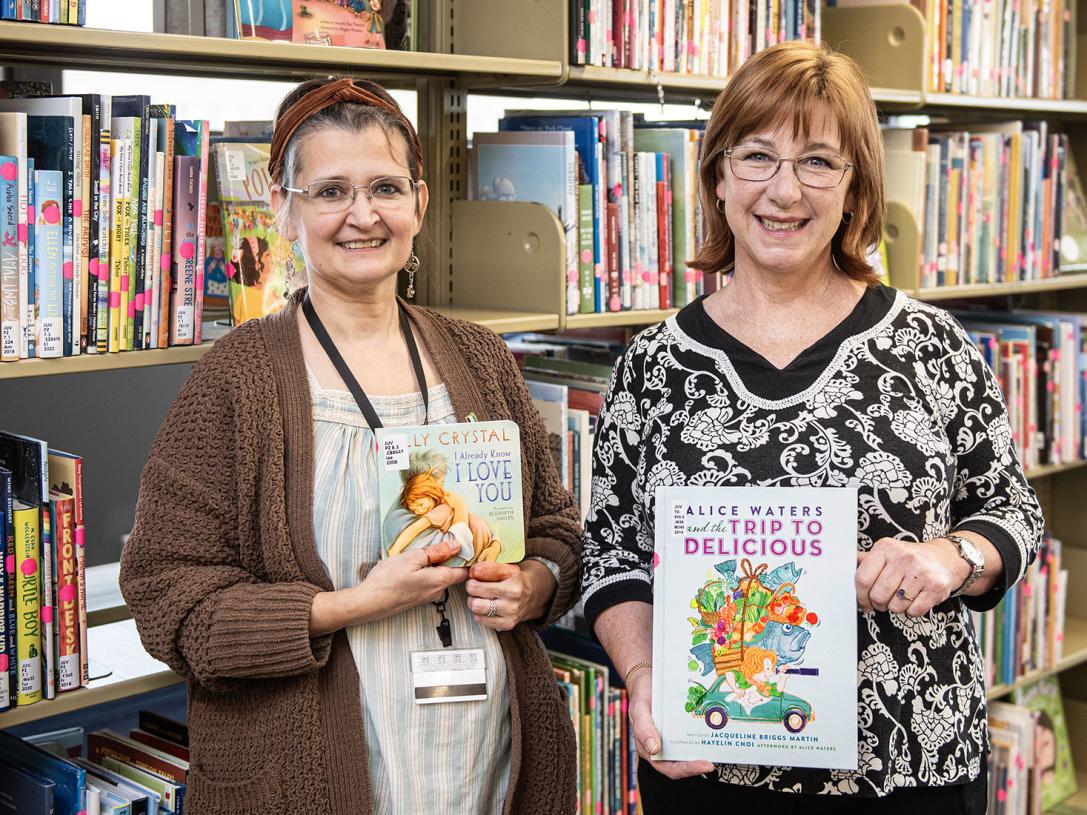
When you are uploading a new image file to the media library, after you fill out the Name field, you will have to fill out the Alternative Text field. This is a required field, so there's no risk of missing it, but it's important to know the function of alternative text so that you can fill it out as best you can. Alternative text is read by screen readers to provide information about the image to users with visual impairment. Therefore, alternative text should describe the image so that all of our users can understand its content.
When writing alt text, keep it concise. One sentence describing the image's central subject is usually enough. Sentence fragments are fine too, and often a noun phrase is most direct, such as "A group of students working in the library." Make sure to end your alt text in a period, though. See some examples of images with alt text below.



Frequently Asked Questions
To add a video, you must provide us with a YouTube link to the video and additional materials to ensure the video is accessible.
At minimum for videos with primarily static content, such as talking heads or a student playing the piano for an extended period, you must provide a typed transcript of all dialogue in the video. For an example of how to format a transcript, see this Google support page. Make sure to save the transcript as a .txt file. You can also reference the suggested techniques from WCAG.
For any video more dynamic than that, you must edit the video to include a prerecorded audio description of all onscreen events, as described in the WCAG guidelines.
Yes, you just need to provide us with the login information for your social media account so that we can authenticate it with our social post aggregating tool.
Keep in mind that only images will appear in your social feed; videos will not be pulled automatically from social media and will not be accessible or include a transcript.